
eSIM makes it possible to activate a mobile plan on an iPhone without inserting a physical SIM card. For most buyers, travelers, and anyone managing work and personal numbers, the key question is simple: which iPhones support eSIM, and how can you confirm your exact device? This guide gives you a practical list of eSIM compatible iPhones, the regional exceptions to watch for, and the basic steps to install eSIM on iPhone.
Which iPhones have eSIM?
The short answer: iPhone XR, iPhone XS, iPhone XS Max, and later iPhone models generally support eSIM, but regional variants matter. Apple states that unlocked iPhone XS, iPhone XS Max, iPhone XR, or later models purchased in the United States can activate with carriers that support eSIM, and Apple’s Dual SIM guidance also begins with iPhone XS, iPhone XS Max, and iPhone XR or later. (apple.com) (support.apple.com)
Use this as the main list of iPhone eSIM models:
iPhone XR
iPhone XS and iPhone XS Max
iPhone 11, iPhone 11 Pro, and iPhone 11 Pro Max
iPhone SE, 2nd generation
iPhone SE, 3rd generation
iPhone 12 mini, iPhone 12, iPhone 12 Pro, and iPhone 12 Pro Max
iPhone 13 mini, iPhone 13, iPhone 13 Pro, and iPhone 13 Pro Max
iPhone 14, iPhone 14 Plus, iPhone 14 Pro, and iPhone 14 Pro Max
iPhone 15, iPhone 15 Plus, iPhone 15 Pro, and iPhone 15 Pro Max
iPhone 16, iPhone 16 Plus, iPhone 16 Pro, and iPhone 16 Pro Max
iPhone 16e
iPhone 17e
iPhone 17, iPhone 17 Pro, and iPhone 17 Pro Max
iPhone Air
There are two important notes. First, some iPhone 14 and later models only use eSIM, depending on the country or region. Apple’s iPhone setup documentation notes that iPhone 14 and later includes some models that use only eSIM, and Apple’s iPhone 17 technical specifications list Dual eSIM with no physical SIM card compatibility. (support.apple.com) (apple.com)
Second, not every regional version of the same iPhone behaves the same way. For example, Apple notes specific eSIM support details for China mainland, Hong Kong, and Macao, including that iPhone Air activates by eSIM only and that only certain models support eSIM in Hong Kong and Macao. (support.apple.com) If you bought your phone abroad, received it secondhand, or are shopping through a marketplace, always check the exact model before assuming it supports eSIM.
The practical list of eSIM iPhones by generation
Looking at eSIM iPhones by generation is often easier than memorizing individual names. If your iPhone belongs to one of the generations below, it is usually eSIM compatible, subject to carrier and regional restrictions.
iPhone XS, XR, and 11 generations
Apple introduced eSIM support to mainstream iPhone models with the iPhone XS, iPhone XS Max, and iPhone XR. The iPhone 11 family continued that support, giving users the option to use a physical nano-SIM and an eSIM for Dual SIM in many markets. These models are still common as refurbished or backup phones, so they are worth checking carefully if you plan to use a travel eSIM.
iPhone SE models
The iPhone SE 2nd generation and iPhone SE 3rd generation are also eSIM compatible iPhones. They are popular with users who want a smaller or lower-cost iPhone while still using a digital plan. If you are asking, “is my iPhone eSIM compatible?” and you have an original iPhone SE from 2016, the answer is no; eSIM support applies to the later SE generations.
iPhone 12 and iPhone 13 generations
The iPhone 12 and iPhone 13 families include eSIM across the mini, standard, Pro, and Pro Max models. Apple also notes that iPhone 13 models and later support Dual eSIM, while iPhone 13 models and earlier also have a nano-SIM tray in supported regions. (support.apple.com) That matters if you want to run two active plans digitally rather than mixing one physical SIM with one eSIM.
iPhone 14, 15, 16, 17, and iPhone Air
Newer iPhones lean more heavily into eSIM. In some regions, these models may have no physical SIM tray at all, while other regional versions may still combine nano-SIM and eSIM. Apple’s iPhone 17 and iPhone 17 Pro specifications list Dual eSIM with support for two active eSIMs and storage for eight or more eSIMs, while iPhone Air is described by Apple as not compatible with physical SIM cards. (apple.com) (apple.com) (apple.com)
How do I know if my phone has an eSIM?
You can usually confirm eSIM support by checking your iPhone model name, looking in Cellular settings for an eSIM option, and confirming that your carrier supports eSIM activation. Apple’s own setup guidance says a supported iPhone can store an eSIM provided by your carrier, but the available setup options depend on your carrier, model, country, and region. (support.apple.com)
Here is a quick checklist for how to check eSIM compatibility:
Check your iPhone model name. Go to Settings > General > About and look for the model name.
Compare it with the list above. If it is iPhone XR, XS, XS Max, or a newer supported model, it is likely compatible.
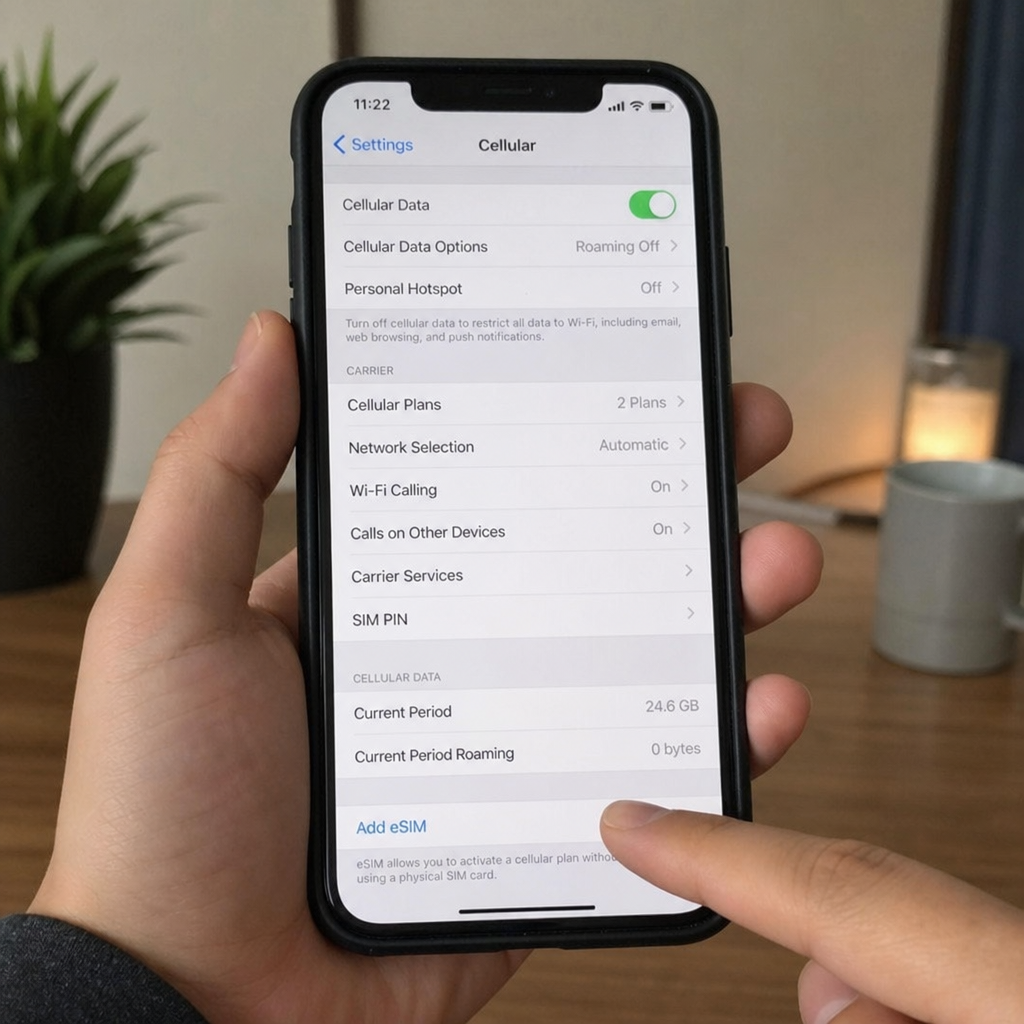
Open Cellular settings. Go to Settings > Cellular and look for options such as Add eSIM, Set Up Cellular, or an existing eSIM section.
Check the purchase region. If the iPhone was made for China mainland, Hong Kong, or Macao, verify Apple’s regional notes before buying or activating a plan.
Ask your carrier. Your iPhone can support eSIM and still fail to activate if your carrier, plan type, or account is not eligible.
Confirm the phone is unlocked if switching carriers. If you want two plans from different providers, carrier lock status can affect whether both lines work.
This is the safest answer to “how do I know if my phone has an eSIM?” because it checks the device, software, region, and carrier together. A model name alone is helpful, but it does not tell the whole story.
eSIM-only iPhones need a little extra planning
Some newer iPhones may not accept a physical SIM card at all. This is convenient when your carrier supports eSIM, but it can be frustrating if you are traveling to a place where your preferred carrier still relies on physical SIM cards. Apple notes that physical SIM is not supported on all models, and newer iPhones in some regions use eSIM-only activation. (support.apple.com)
Before choosing an eSIM-only phone, think about how you use mobile service:
Frequent travel: Check whether your destination has reliable travel eSIM options before you leave.
Work and personal numbers: Confirm that both carriers support eSIM and Dual SIM.
Rural or niche carriers: Smaller providers may not offer every eSIM activation method.
Secondhand purchases: Inspect the model number and region before paying.
Emergency backup plans: If you rely on buying a local SIM card at arrival, make sure a digital alternative exists.
For many users, eSIM-only is simple and secure. The main risk is not the technology itself; it is assuming every carrier and country supports it the same way.
How to install eSIM on iPhone
To install eSIM on iPhone, you typically use your carrier’s activation method, scan a QR code, transfer a plan from another iPhone, or activate through a carrier app. Apple lists several supported setup routes, including eSIM Carrier Activation, eSIM Quick Transfer, QR code activation, carrier app activation, and travel eSIM options. (support.apple.com)
A typical setup looks like this:
Connect your iPhone to Wi-Fi.
Go to Settings > Cellular.
Tap Add eSIM or Set Up Cellular.
Choose the method your carrier provided.
Follow the on-screen prompts.
Return to Settings > Cellular and confirm the new line is turned on.
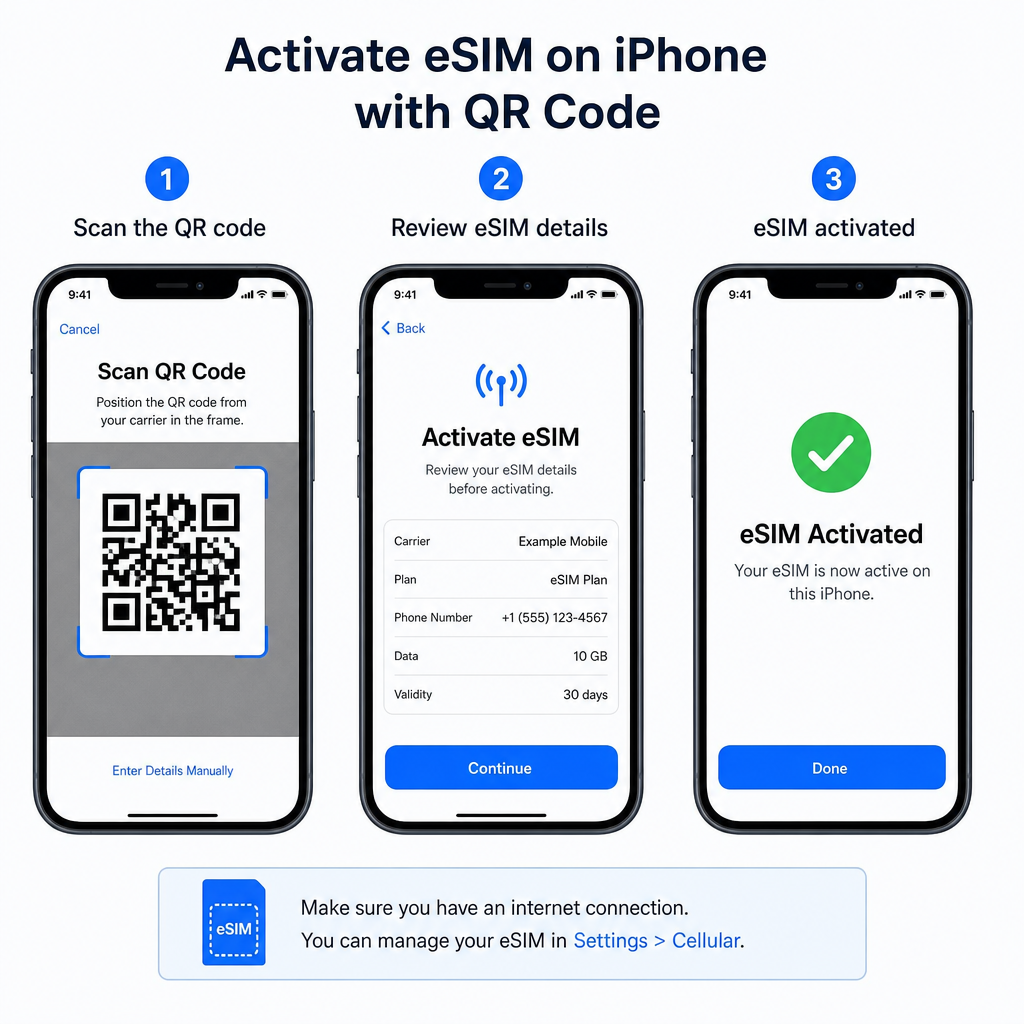
If you are converting a physical SIM to eSIM, Apple says this is possible on supported iPhone models when the carrier supports the feature. The path is usually Settings > Cellular > Add eSIM, then selecting the physical SIM number and choosing Convert to eSIM if the option appears. (support.apple.com)
Common reasons eSIM setup fails
Even with one of the right iPhone eSIM models, activation is not guaranteed. The most common issue is carrier support: your provider must support eSIM, your plan must be eligible, and your account must be ready to activate. Apple also advises checking coverage, billing status, and whether your provider supports Dual SIM with eSIM if you are using two lines. (support.apple.com)
Other common problems include weak internet during setup, an expired QR code, a carrier-locked iPhone, or trying to move an eSIM from a non-Apple device without carrier help. If your eSIM plan does not appear after setup, restart the iPhone, return to Cellular settings, and contact the carrier if the line still does not show. The carrier controls the plan provisioning, so they are often the only party that can reissue a QR code or push activation again.
Final takeaway
If you are wondering “which iPhones have eSIM,” start with iPhone XR, iPhone XS, iPhone XS Max, and newer models, then confirm your exact region and carrier support. The list of esim compatible iphones is broad, but compatibility is not only about the model name; it also depends on where the phone was sold and how your carrier activates service. Check the model in Settings, look for Add eSIM, verify your carrier, and you will know whether your iPhone is ready for digital activation.